x

AutoCAD

iMapper exports native DXF files for AutoCAD from laser-scanned room measurements with ±2mm precision.
Company:
AutoCAD
iMapper + AutoCAD: Precision Room Measurements to DXF
iMapper exports DXF files that open directly in AutoCAD 2020–2025. Geometry arrives on named, editable layers with ±2mm precision, and 360° site photos stay linked for cross-reference.
Native DXF • ±2mm precision • 360° photos
Import menu path:
File > Open > select .dxf file

AutoCAD receives iMapper data as a native DXF with no conversion step. Scan a room in 2-3 minutes at ±2mm accuracy, draw the room area on the iMapper platform, export to DXF, and open it directly in AutoCAD 2020-2025 via File > Open. The geometry lands on four named layers: iMapper_Points, iMapper_Lines, iMapper_Walls, and iMapper_Positions. If you drew room walls on the platform, those walls arrive with correct thickness and are ready to work from. The 360° photos captured during scanning stay linked on platform.imapper.tech, so you can cross-reference details without returning to the building.

Benefits

±2mm Measurement Accuracy

iMapper's laser captures 1,200+ points per minute with ±2mm precision. Dimensions in AutoCAD reflect the room exactly, so you won't discover a measurement error when you get back to the office.

10 Minutes from Scan to AutoCAD

Scan a room in 3 minutes. Upload in 2 minutes. Export and import in 5 minutes. Traditional surveys take 2-3 hours for the same result.

Professional Accuracy at a Fraction of 3D Scanner Cost

Professional 3D scanning stations run tens of thousands of euros and need a specialist to process the output. iMapper gives you ±2mm survey data from a device that fits in a carry-on bag, without the processing overhead.

Workflow steps

Step 1: Capture site data with iMapper

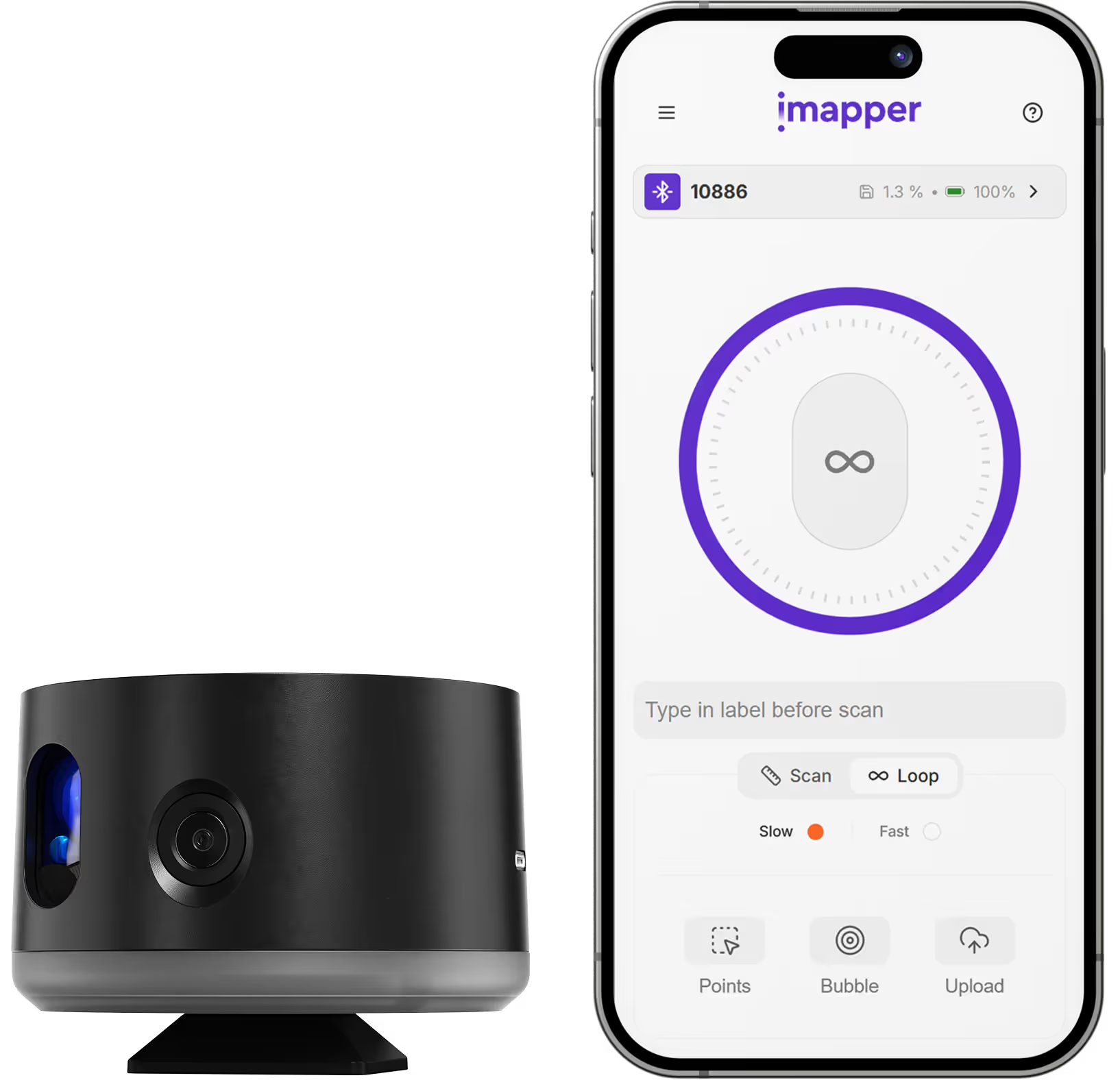
Place iMapper in the center of the room, press the button and iMapper will scan it in 2-3 minutes with ±2mm accuracy and 360° photos.

Step 2: Upload to iMapper Platform

Transfer via SD card or Connect app to platform.imapper.tech. Scans auto-stitch into complete floor plan.

Step 3: Export to DXF

Click Export > DXF. Choose metric or imperial. Download includes points, lines, and walls on separate layers.

Step 4: Open in AutoCAD

Go to File > Open > select the .dxf file. iMapper data appears immediately as native AutoCAD objects, with no import wizard or conversion step.

Step 5: Work with the named layers

The file opens with four layers already organized: iMapper_Points (raw scan data), iMapper_Lines (room outlines and geometry), iMapper_Walls (wall geometry with thickness, if you drew walls on the platform), and iMapper_Positions (scanner standing positions). If your walls are in the iMapper_Walls layer, you can start dimensioning and annotating without tracing anything. The iMapper_Points layer is useful for verifying corners or irregular surfaces where the wall geometry needs a second check. Toggle layers on and off through AutoCAD's Layer Properties Manager in the usual way.

Step 6: Verify with photo cross-reference

Any detail that needs checking, whether outlet positions, beam dimensions, or pipe runs, can be cross-referenced against the 360 photos on platform.imapper.tech. No site revisit needed for routine clarifications.

iMapper captures one room at a time as a 2D horizontal cross-section. Multi-room projects need per-area exports from the platform and a separate DXF import for each room in AutoCAD; there is no single-export option covering a full building floor plan. The scanner range is 30m; very long corridors or open-plan spaces larger than that require repositioning and additional scans. Split levels, mezzanines, and sloped ceilings are not captured in a single scan pass; each height needs its own scan. The DXF contains 2D geometry only; iMapper does not produce 3D mesh models.

Use cases

Renovation Surveys

Capture existing room conditions before demolition. Start AutoCAD design with accurate as-built data.

As-Built Documentation

Create accurate records of completed work for handover or facility management.

Interior Design

Base drawings with furniture-free room geometry for space planning in AutoCAD.

Residential Architecture

Precise floor plans for additions and remodels where existing conditions must be documented.

Category
CAD
Useful for
Architect
Output Formats
DXF
Recommended Format
DXF
Accuracy Statement
±2mm precision
Units
Metric and Imperial
Supported Versions
2020, 2021, 2022, 2023, 2024, 2025
Last Updated
January 26, 2026

Frequently asked questions

Need something cleared up? Here are our most frequently asked questions.
What file formats does iMapper export for AutoCAD?
How accurate are iMapper measurements in AutoCAD?
Do I need a plugin to use iMapper with AutoCAD?
What versions of AutoCAD are supported?
Can I verify measurements if something looks unclear?
What projects work best with iMapper + AutoCAD?
How long does the workflow take?
Is iMapper suitable for large buildings?

How

Architect

s

are using iMapper

Discover how companies streamline scanning, standardize operations, and speed up decision-making using iMapper’s camera-powered visual data system.
Sylvain Raillard
Architectural firm
iMapper ha completamente cambiato i rilievi e gli appuntamenti con i clienti.
Sylvain Raillard
Inée Architecte
Read Customer Story
Emeline Dussaucy & Thomas Régent
Architectural firm
«iMapper ci ha permesso di aumentare l'efficienza e ottimizzare il nostro tempo in loco»
Emeline Dussaucy & Thomas Régent
studiozero
Read Customer Story
Discover iMapper
functionality in 15 minutes
Book a non-binding demo call to see how iMapper Hardware and Software work and improve your measuring workflow on-site and in post production.