x

Cabinet Vision

iMapper exports native ORDX room files for Cabinet Vision from laser-scanned room measurements with ±2mm precision, ready for cabinet design and manufacturing.
iMapper + Cabinet Vision: Native ORDX Room Files for Cabinet Makers
Native ORDX export from measured site data, so cabinet runs fit the real room with ±2mm precision and 10 portrait reference photos.
Native ORDX • ±2mm precision • 10 portrait photos
Import menu path:
Open the .ordx file directly in Cabinet Vision (native room format)

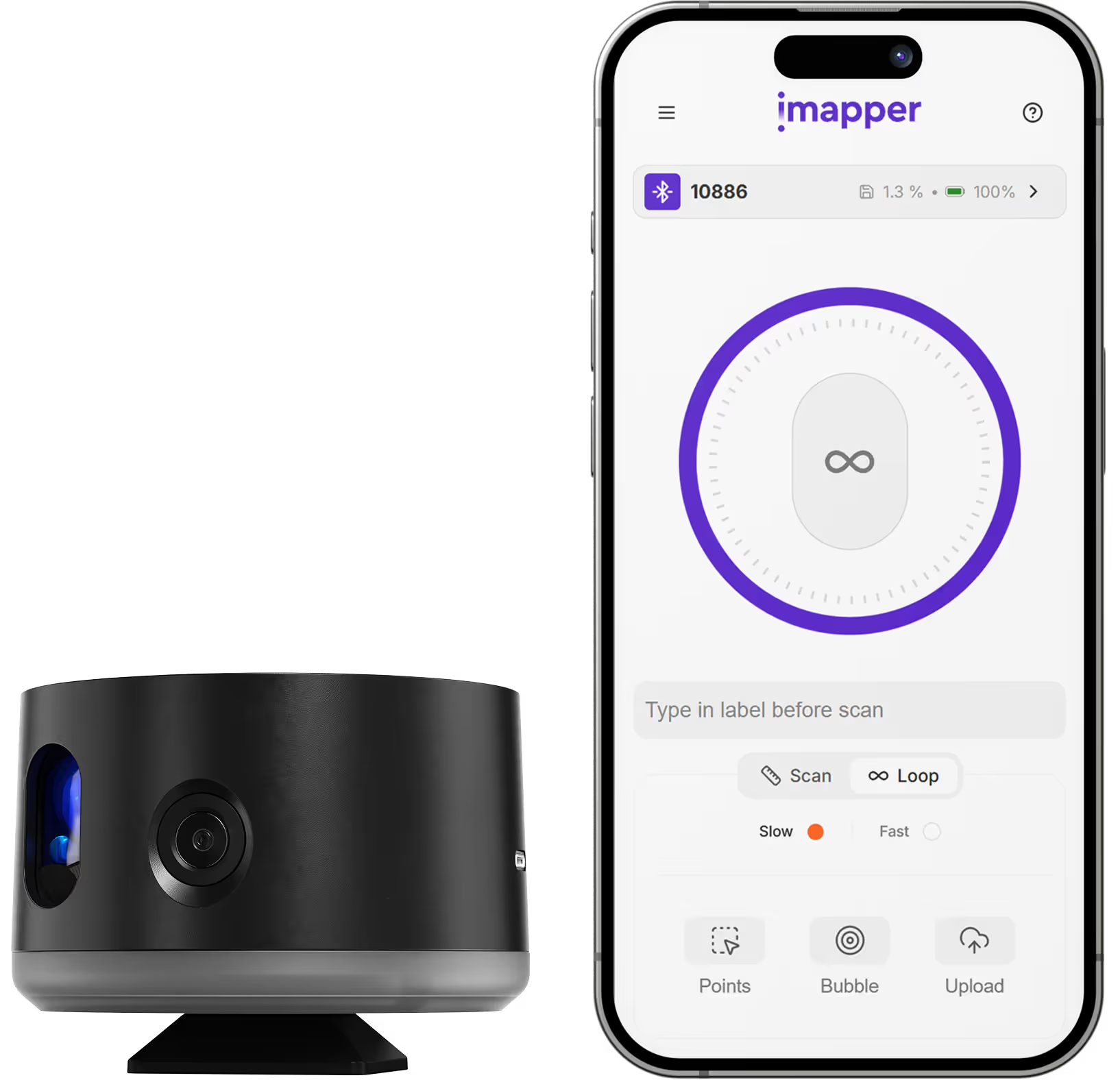
iMapper integrates natively with Cabinet Vision to give cabinet makers, closet designers, and kitchen designers millimeter-accurate room measurements ready for cabinet design and CNC manufacturing. Using iMapper's laser scanner (±2mm precision), you capture complete room geometry (walls, windows, doors, and irregular surfaces) in under 3 minutes per room. The iMapper platform exports ORDX files, Cabinet Vision's native room format, so room geometry opens directly in Cabinet Vision with no conversion step, no plugin, and no tracing over a reference underlay. Unlike tape measures, iMapper eliminates measurement errors and manual transcription, delivering design-ready room data that drives downstream manufacturing with confidence. Every measurement includes 10 portrait reference photos for verifying outlet positions, pipe locations, and obstruction clearances from your desk rather than from a return visit to site.

Benefits

±2mm Measurement Accuracy

iMapper's laser captures 1,200+ points per minute with ±2mm precision. Cabinet runs fit the first time, with no costly rework, material waste, or callbacks caused by mismeasured walls.

Native ORDX Room File

iMapper exports directly to ORDX, Cabinet Vision's native room format. Open the file in Cabinet Vision and start designing immediately. No plugin, no conversion, and no tracing over a reference underlay.

10 Portrait Reference Photos for Every Detail

Outlet positions, pipe runs, beam clearances, existing obstructions. Verify every detail from 10 portrait reference photos on the iMapper platform without returning to site.

Workflow steps

Step 1: Capture site data with iMapper

Place iMapper in the center of the room and press the button once. The scanner completes its pass in 2 to 3 minutes and captures ±2mm measurements alongside 10 portrait reference photos at each scan position.

Step 2: Upload to iMapper Platform

Transfer the scan via USB or automatically upload through the iMapper Connect app to platform.imapper.tech. Multiple scans from the same project auto-stitch into a single floor plan.

Step 3: Export to ORDX

Draw the room Area on the iMapper platform using magnetized snap points, then click Export > ORDX. The file contains Cabinet Vision's native room geometry, ready to open directly in Cabinet Vision.

Step 4: Open in Cabinet Vision

Open the .ordx file directly in Cabinet Vision. Because ORDX is Cabinet Vision's native room format, the scanned room geometry loads immediately with walls, dimensions, and angles in place. No plugin, no import wizard, no tracing.

Step 5: Start your cabinet design

The room arrives as native Cabinet Vision geometry. Place cabinet runs, appliances, and countertops on real wall positions rather than sketched measurements. Downstream manufacturing, nesting, and G-code reflect the room as it actually is.

Step 6: Verify with photo cross-reference

Need to check an outlet position, a pipe clearance, or a beam before finalizing a run? Cross-reference the 10 portrait reference photos captured during scanning. No site revisit needed.

ORDX export covers one room at a time. For multi-room projects, each area is exported and opened separately in Cabinet Vision. iMapper creates 2D horizontal sections, not full 3D mesh models. Open-plan spaces larger than 30m may require multiple scan positions. Split levels, mezzanines, and sloped ceilings are not captured in a single pass.

Use cases

Kitchen Cabinet Design

Capture existing kitchen dimensions for accurate cabinet layout, appliance placement, and countertop planning before a single cut is made.

Custom Closet Design

Precise closet and wardrobe geometry for built-in cabinet fitting, especially in odd-shaped or non-square rooms where tape measures routinely miss.

Kitchen Remodel

Document existing conditions before demolition. Start Cabinet Vision with accurate as-built data so manufacturing and material planning reflect reality.

Commercial Casework

Accurate room dimensions for office, hospitality, and retail casework. Reduce on-site fitting issues and manufacturing waste on larger projects.


Category
Kitchen Design
Useful for
Kitchen Designer
Output Formats
ORDX
Recommended Format
ORDX
Accuracy Statement
±2mm precision
Units
Metric and Imperial
Supported Versions
Cabinet Vision 2020, 2021, 2022, 2023, 2024, 2025
Last Updated
April 17, 2026

Frequently asked questions

Need something cleared up? Here are our most frequently asked questions.
What file formats does iMapper export for Cabinet Vision?
How accurate are iMapper measurements in Cabinet Vision?
Do I need a plugin to use iMapper with Cabinet Vision?
What versions of Cabinet Vision are supported?
Can I verify measurements if something looks unclear?
What projects work best with iMapper + Cabinet Vision?
How long does the workflow take?
How do I open an iMapper ORDX file in Cabinet Vision?

How

Kitchen Designer

s

are using iMapper

Discover how companies streamline scanning, standardize operations, and speed up decision-making using iMapper’s camera-powered visual data system.
Albert Dubler
Architectural firm
iMapper is easy to use, even for people like me who find it harder to learn compared to younger people.
Albert Dubler
atelier-darchitecte-albert-dubler
Read Customer Story
Dimitri Bodiansky
Architectural firm
It’s one of the tools I can no longer work without.
Dimitri Bodiansky
latelier-des-batisseurs
Read Customer Story
Discover iMapper
functionality in 15 minutes
Book a non-binding demo call to see how iMapper Hardware and Software work and improve your measuring workflow on-site and in post production.